Leads
A lightweight CRM pipeline in ISPBox to track prospects, assign owners, schedule follow-ups, log activity, and convert leads into clients with an optional installation workflow.
What this is for
The Leads section is a lightweight CRM pipeline for tracking potential customers before they become real clients in ISPBox. Use it to:
- capture inbound inquiries (website, phone, referrals),
- assign ownership to a team member,
- schedule and track follow-ups,
- keep a simple history of contacts and notes,
- convert a lead into a Client and (optionally) start the installation workflow.
When to use Leads vs Clients
| Use case | Use this |
|---|---|
| Someone is interested but not onboarded yet | Leads |
| They are already paying / have services | Clients |
| You need to schedule an installation workflow from a prospect | Leads → Convert & Schedule Installation |
Leads List (/leads/list)
Purpose
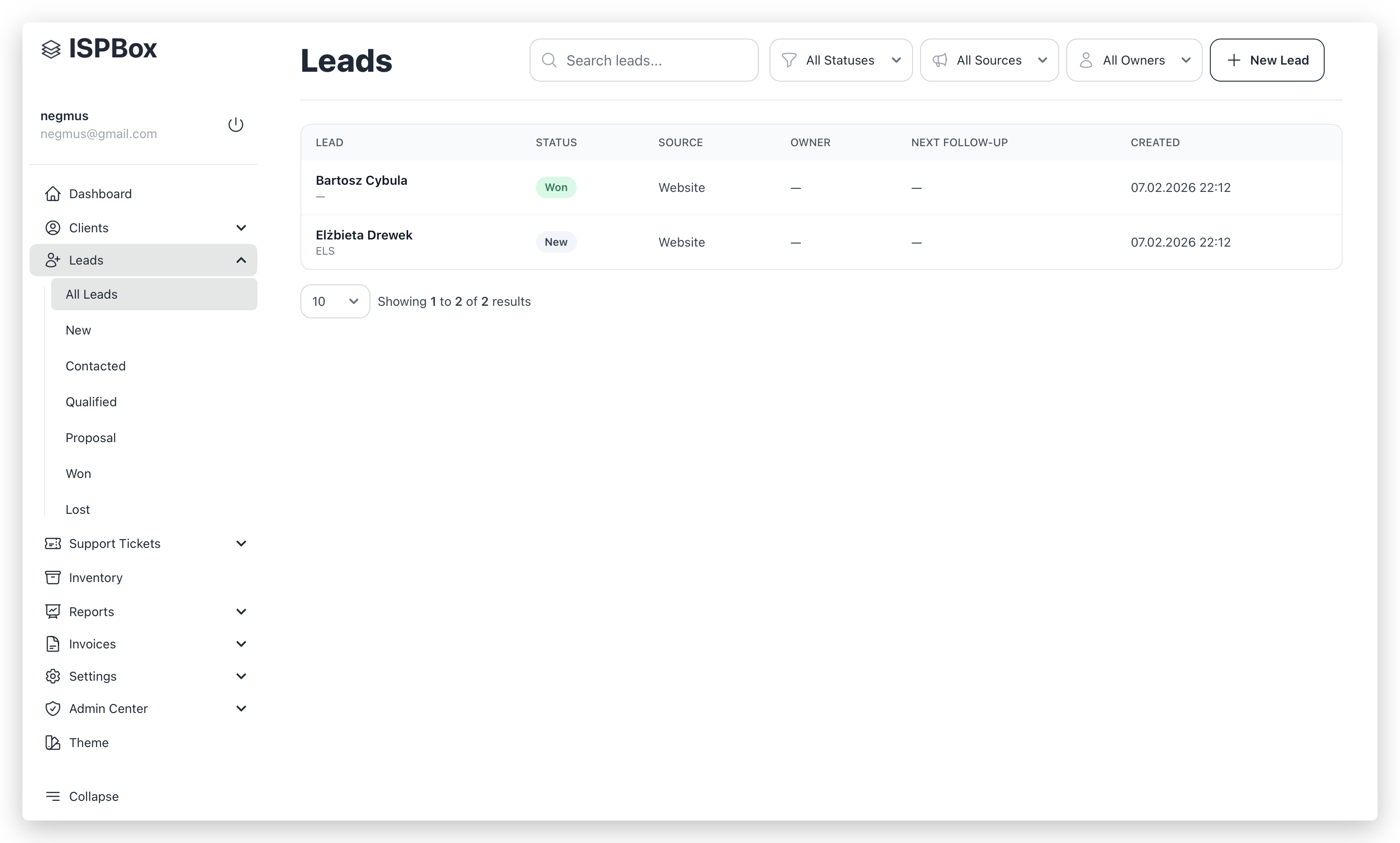
A single place to triage and work your pipeline: who’s new, who needs a follow-up, and what stage each prospect is in.
How to use it (daily workflow)
- Search or filter the list (status/source/owner).
- Open the lead.
- Update status and set Next Follow-Up.
- Log what happened (call/email/meeting) in the timeline.
- When ready, convert the lead to a client.
Top bar controls
| Control | Why it matters |
|---|---|
| Search | Quickly find a lead by name/company/email/phone |
| Status filter | Focus on a pipeline stage (New, Contacted, Qualified, etc.) |
| Source filter | See where leads are coming from (Website, Referral, etc.) |
| Owner filter | Work “my leads” or unassigned leads |
| New Lead | Add a new prospect (if you have permission) |
Sidebar shortcuts
The left menu gives one-click views for each stage (All, New, Contacted, Qualified, Proposal, Won, Lost). This is meant for quick daily navigation.
Table columns (what to look at)
| Column | What to use it for |
|---|---|
| Lead | Identity and contact details at a glance |
| Status | Where the lead is in your pipeline |
| Source | How they found you |
| Owner | Who is responsible for next steps |
| Next Follow-Up | The next action date you promised yourself |
| Created | How fresh/old the lead is |
Add New Lead (/leads/add)
Purpose
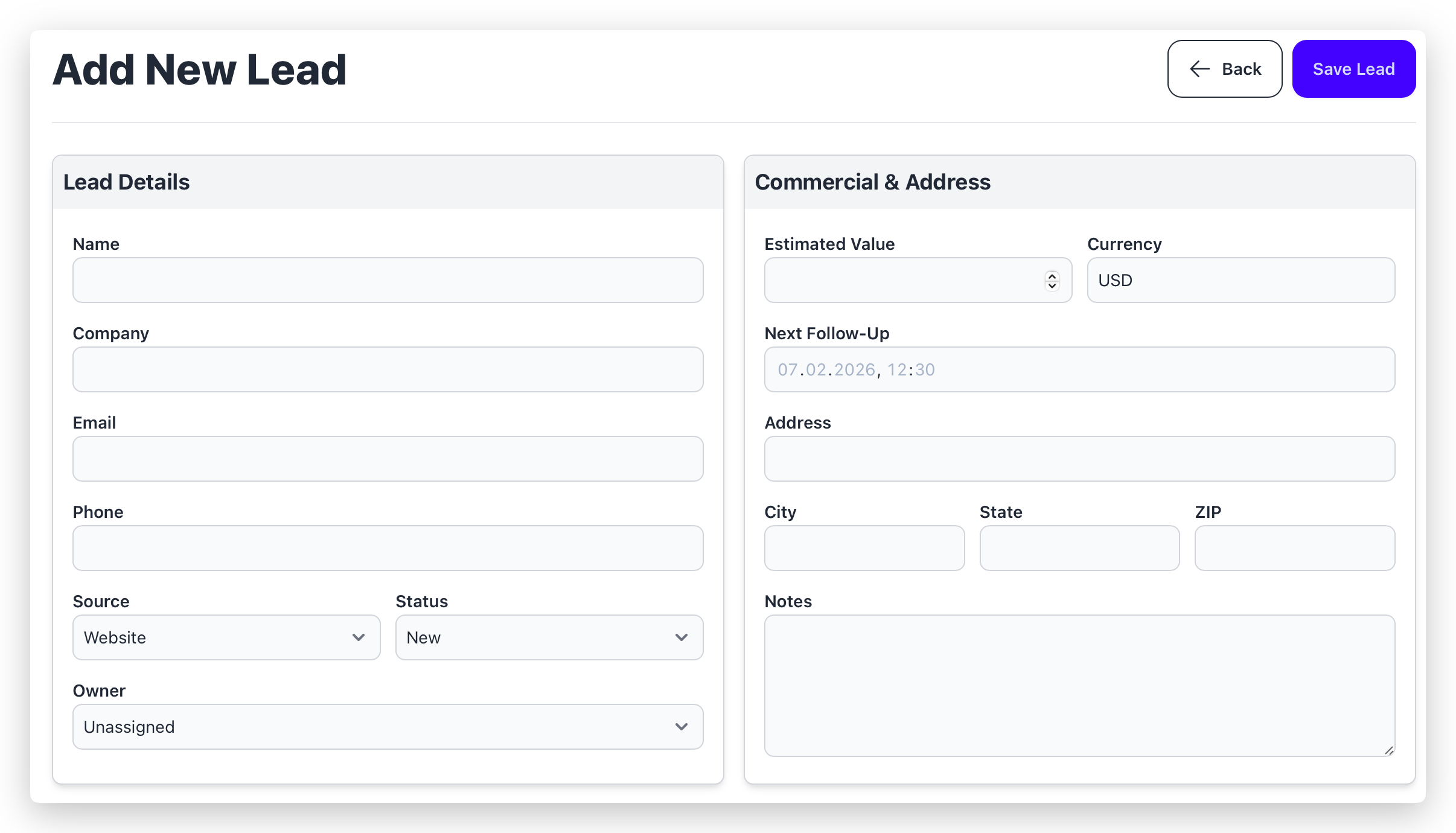
Create a lead record quickly with just enough detail to follow up properly.
Recommended minimum fields
| Field | Recommendation |
|---|---|
| Name | Required |
| Phone or Email | Add at least one so you can contact them |
| Source | Helps with reporting and context |
| Owner | Assign immediately if possible |
| Next Follow-Up | Set a date so nothing is forgotten |
| Notes | Put the “why they reached out” here |
Lead Detail
Purpose
This is where the lead is actually worked: update info, manage follow-ups, and decide if they convert.
Key actions
| Action | What it does |
|---|---|
| Update | Saves changes to the lead (status, owner, follow-up dates, notes, etc.) |
| Convert & Schedule Installation | Converts the lead into a client and starts the installation workflow (if enabled by permissions) |
| Back | Returns to the list |
Practical guidance
- Use Status to reflect reality (not optimism). Your pipeline becomes useful only if stages are consistent.
- Keep Next Follow-Up accurate. If you contact the lead today, set the next step immediately.
- If a lead is Lost, write the reason. This is valuable later for pricing/coverage/product decisions.
Tasks / Follow-Up (on the lead)
What this is for
Tasks are simple internal reminders tied to the lead, so you can track what still needs to happen (call, quote follow-up, site survey, etc.).
What you can do:
- add a task (title + optional details),
- assign it to a team member,
- set a due date,
- mark it done or reopen it later.
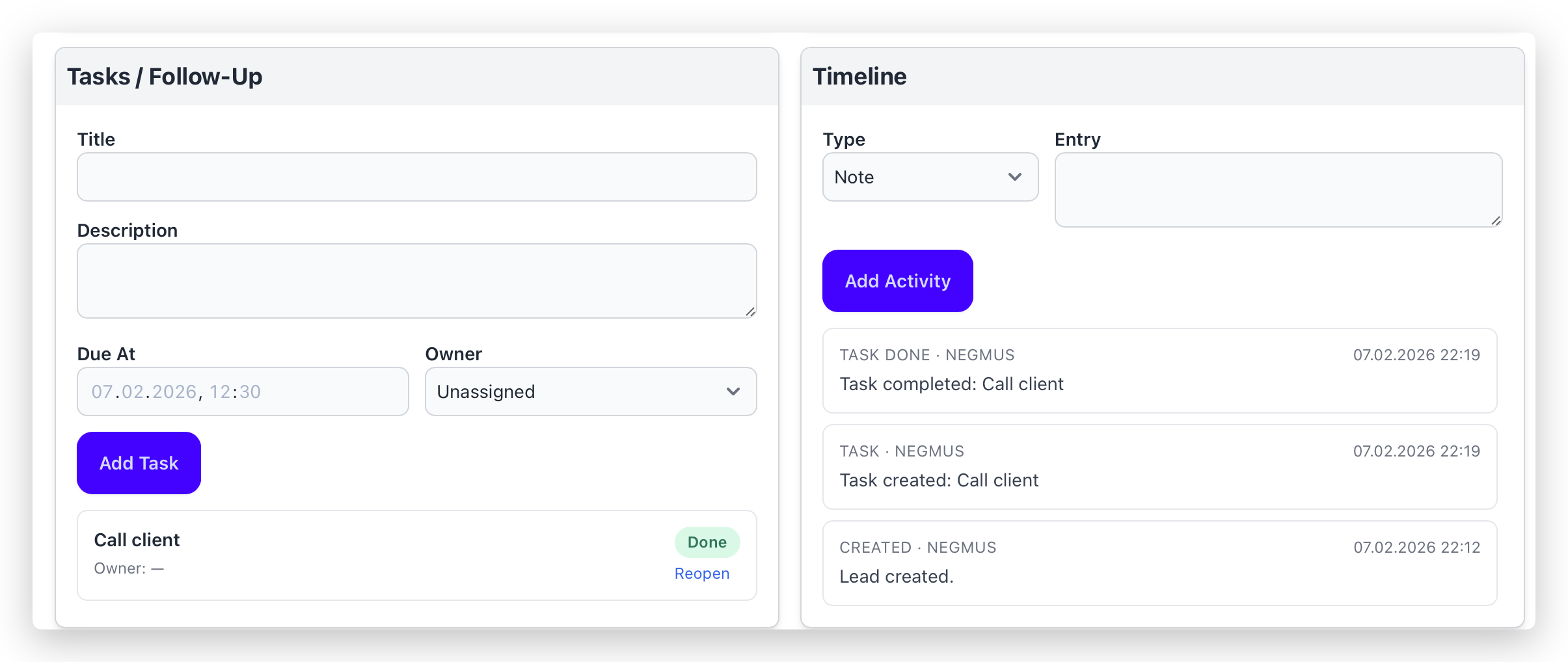
Timeline (activity log)
What this is for
The timeline is the lead’s history. It answers: “What did we do, when, and what did we learn?”
Typical entries:
- note from a conversation,
- call outcome,
- email summary,
- meeting notes,
- status change and conversion events.
Tip: log short, factual updates. This becomes extremely useful when leads change owners.
Conversion: Lead → Client (+ Installation)
What happens when you convert
When you choose Convert & Schedule Installation:
- the lead is converted into a Client (existing client may be reused if email matches),
- the lead is marked as Won,
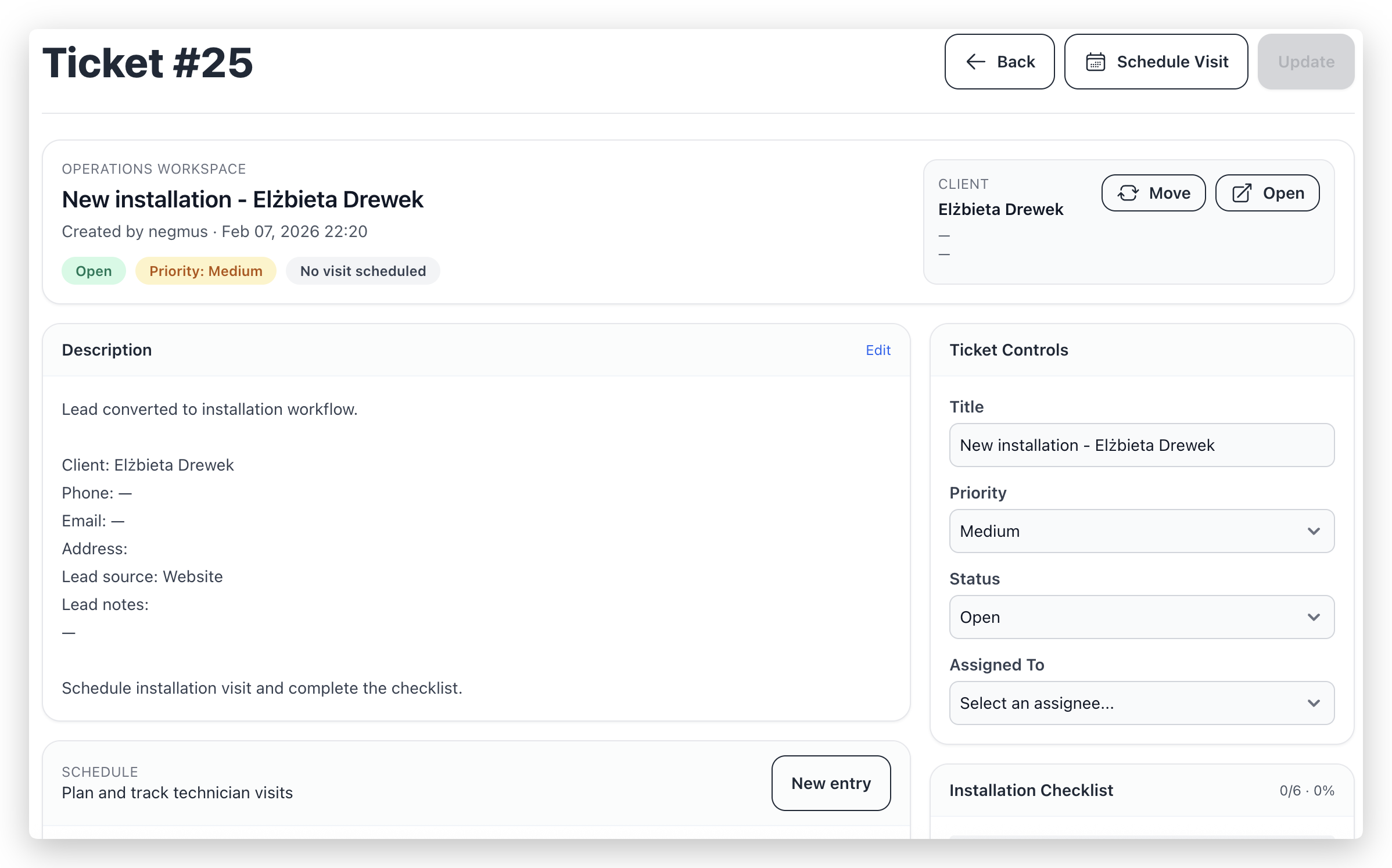
- an installation ticket can be created (depending on permissions),
- an installation checklist can be pre-filled from your company checklist template (if enabled).
When to convert
Convert when:
- pricing/plan is agreed,
- you need to schedule installation,
- you want the prospect to move into normal client/service workflows.