How to Add the Package
Learn how to add a package in ISPBox: configure service type, price, download and upload speeds, and see how package settings affect provisioning and invoices.
- Go to Settings -> Packages.
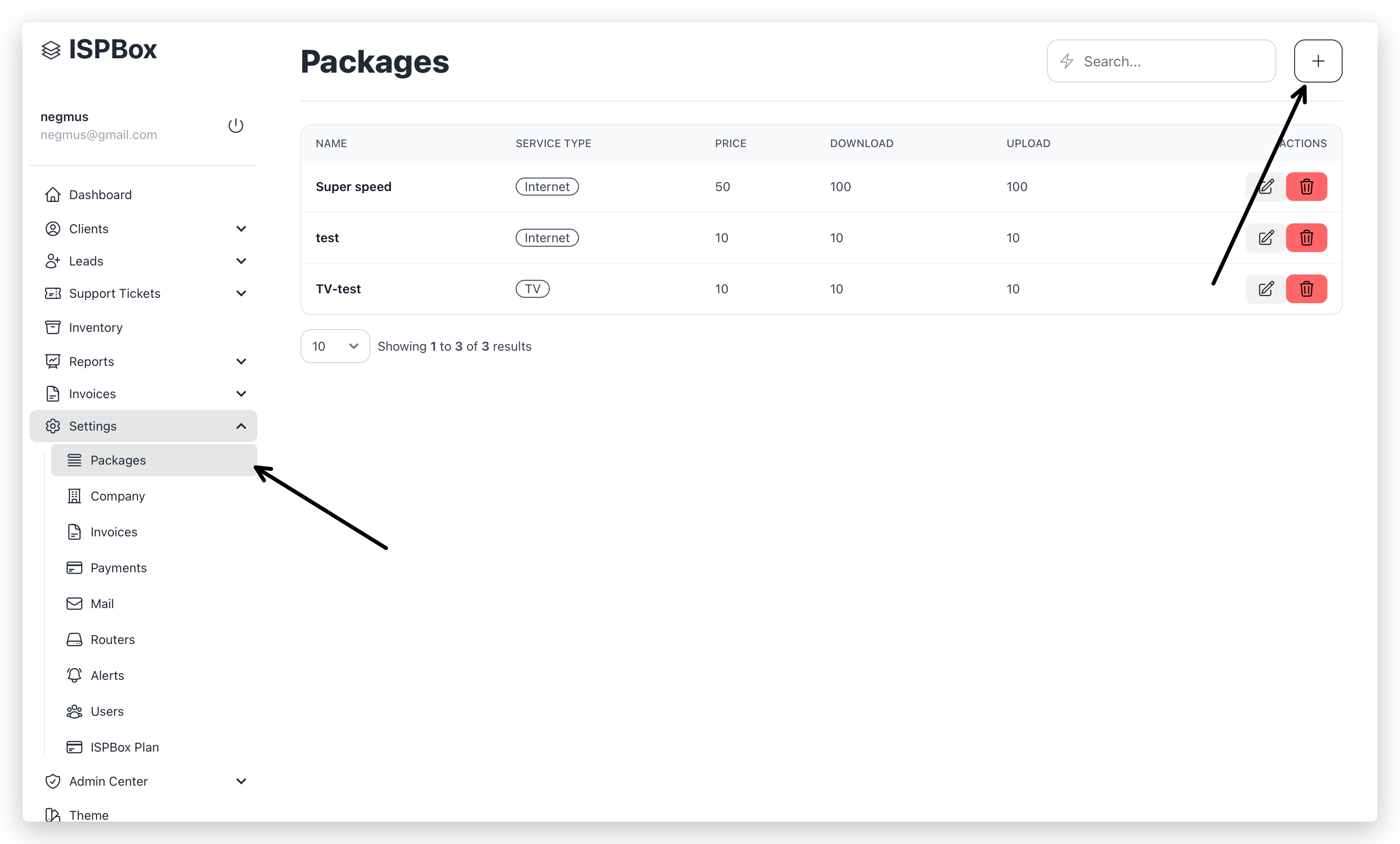
- Click the + button.
- Fill:
- Name
- Service Type
- Price
- Download
- Upload
- Click Save.
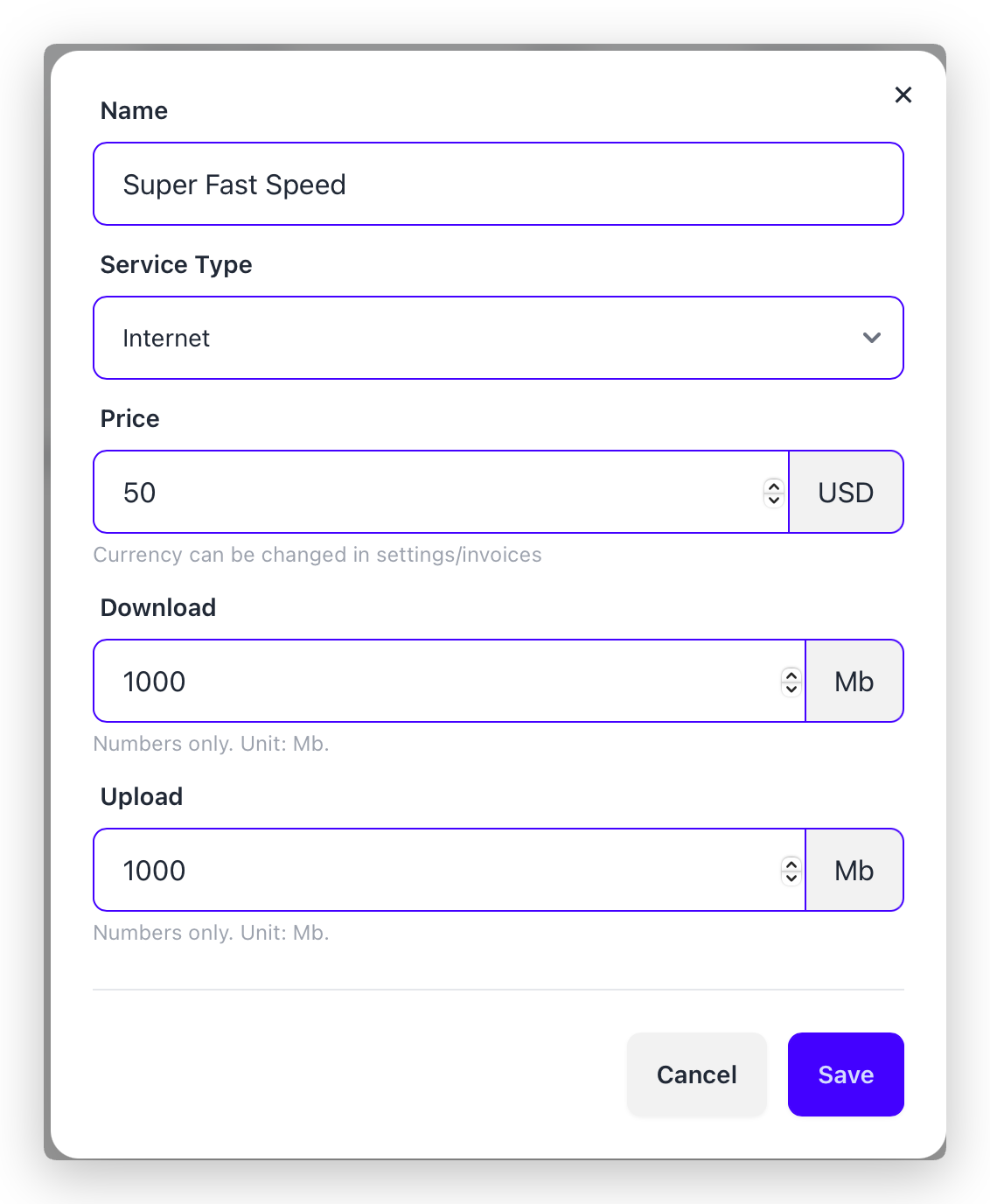
What each field actually does
-
Name
Used in package list and later in invoice line description (together with service description). -
Service Type (internet, tv, voice, other)
Used for service behavior: -
tv forces IPTV credentials on service add/edit.
-
TV API exports only services whose package type is tv.
-
This value is editable later (package edit modal).
-
Price
Used as recurring service amount during invoice generation (from current package price at invoice time). -
Download / Upload
Used for speed provisioning, not for invoice amount: -
API routers: creates queue max-limit from package upload/download.
-
RADIUS flow: sends rate-limit as uploadM/downloadM.
Invoice impact (important)
- Package price affects recurring invoice total.
- Invoice line description uses package name + service description.
- Download/Upload do not set invoice amount.
- Changing package price affects future invoices (already issued invoices stay unchanged).
Can it be changed later?
- Yes, package fields can be edited later.
- You cannot delete a package if it is already assigned to services.