Customer Portal
A self-service customer portal to view services, check invoices, track payments, and submit support tickets, with optional Stripe online payments.
Customer Portal
The Customer Portal is a self-service area where your customers can:
- view their active services,
- review invoices and payment history,
- (optionally) pay invoices online,
- open a support ticket.
Portal URL format: https://{your-subdomain}.ispbox.net/portal
Login page: /portal/login
Signing In & Access
| Screen | What it’s for | Notes |
|---|---|---|
| Sign in (/portal/login) | Log in with email + password | Includes Remember me option |
| Forgot password (/portal/forgot-password) | Sends a password reset link to the email address | Use when the customer can’t log in |
After login, the portal header shows the provider name and the signed-in user, plus Log out.
Portal Navigation (Tabs)
The portal uses four tabs:
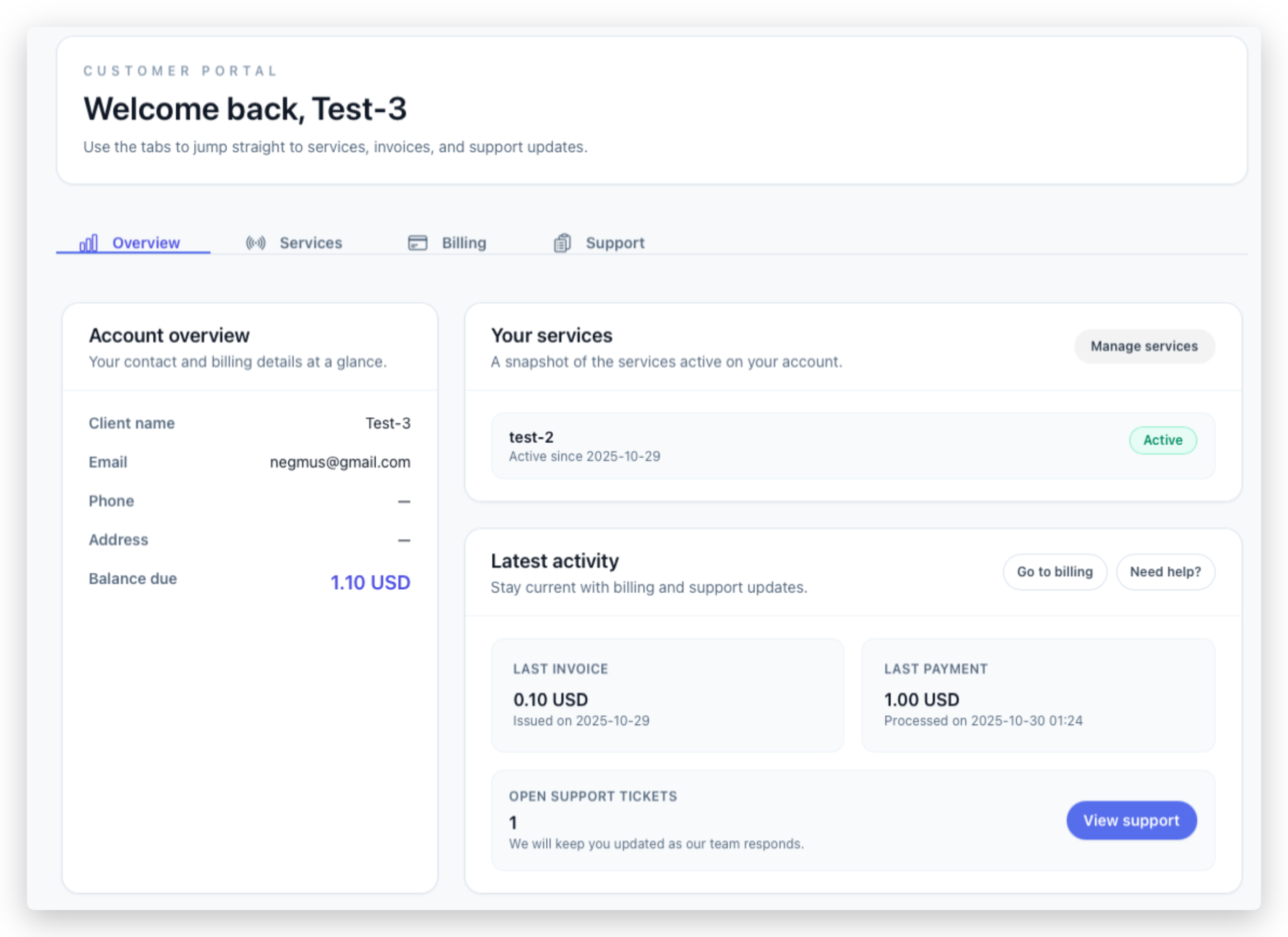
- Overview: account snapshot and shortcuts
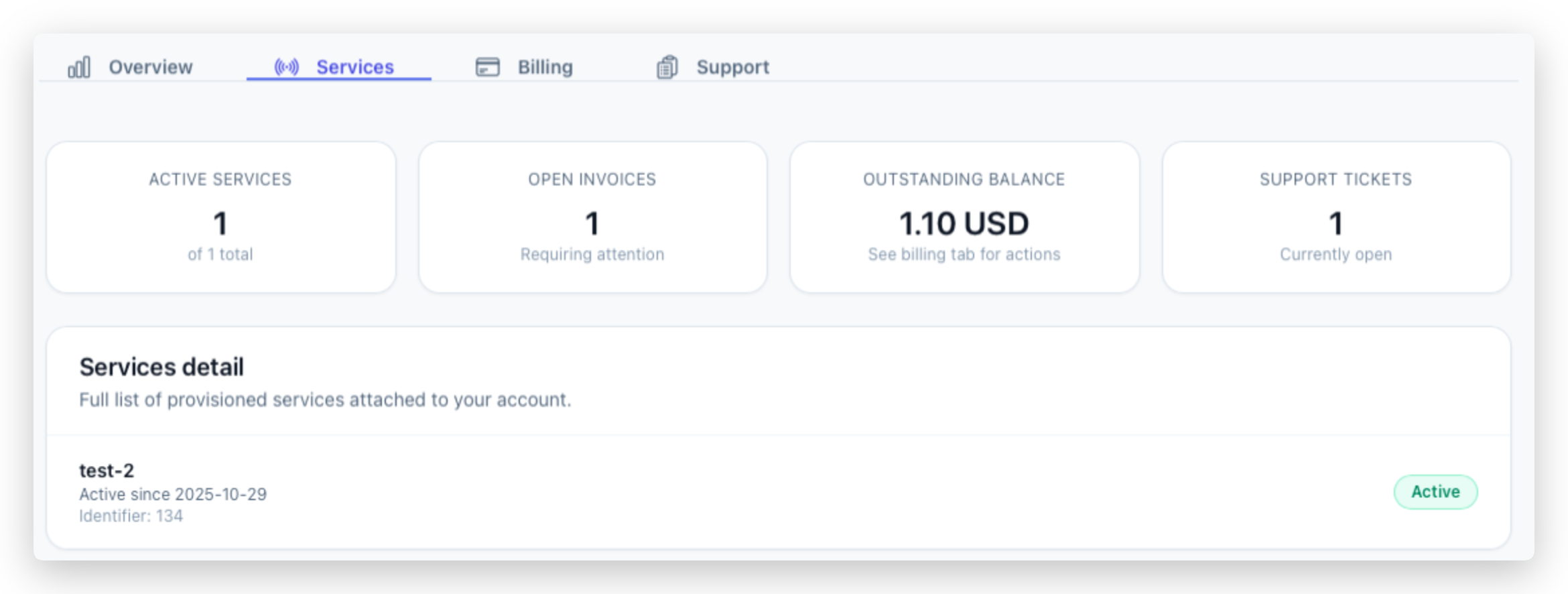
- Services: list of provisioned services
- Billing: invoices, balances, and optional online payments
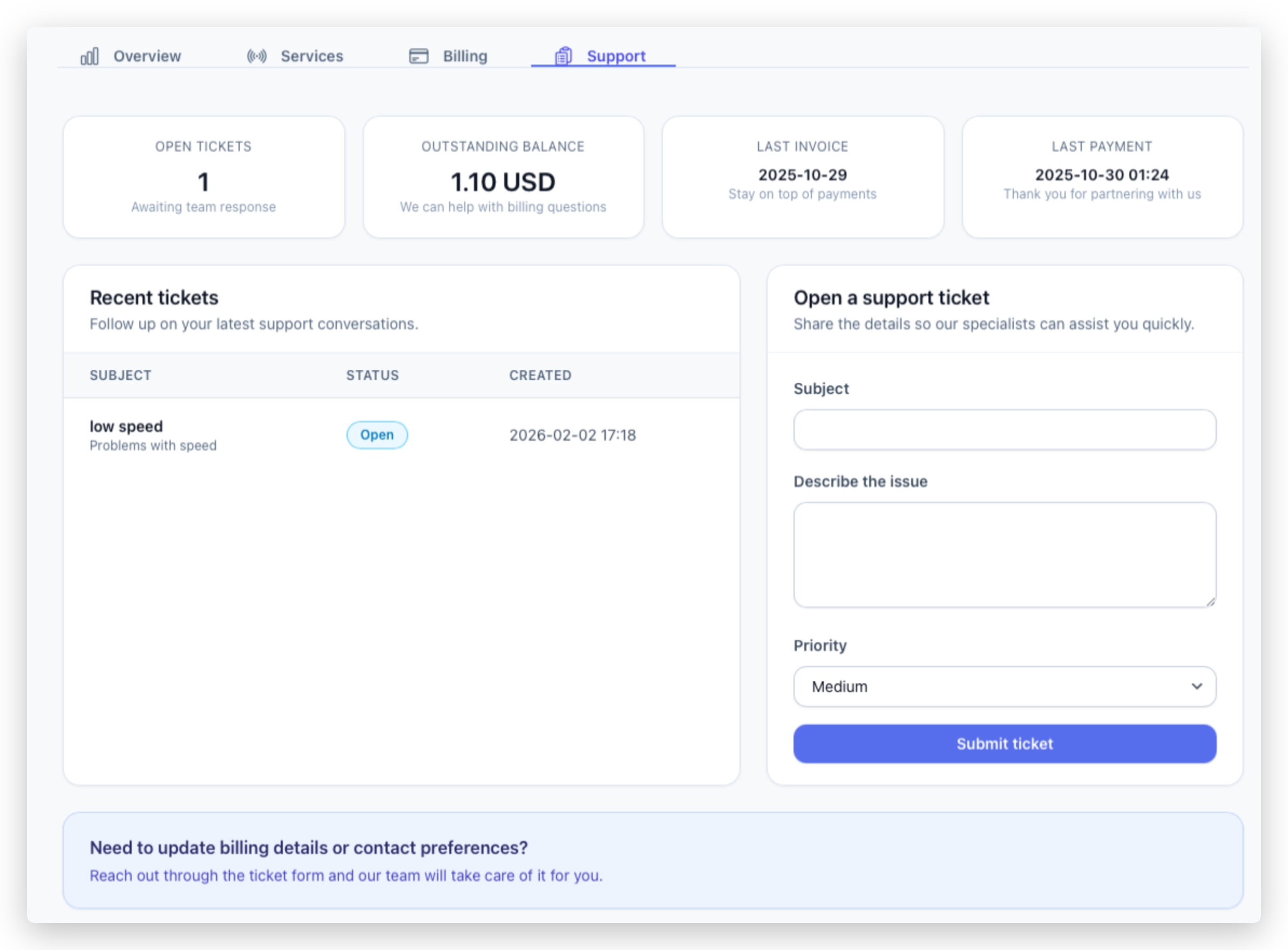
- Support: recent tickets + new ticket form
Overview Tab
Account Overview
A quick summary of the customer profile and current balance.
| Field | Meaning |
|---|---|
| Client name / Email / Phone / Address | Contact details on the account |
| Balance due | Current amount owed (based on invoicing/ledger data) |
Your Services (Snapshot)
Shows up to a few services attached to the account and their status.
| Element | What the customer can do |
|---|---|
| Service card | See service name/description and whether it’s Active/Inactive |
| Manage services | Jumps to the Services tab for the full list |
Latest Activity
A quick “what happened last” panel.
| Card / Button | What it means |
|---|---|
| Last invoice | Latest invoice total + issue date (if available) |
| Last payment | Latest payment amount + processed date (if available) |
| Open support tickets | Count of tickets awaiting response |
| Go to billing | Opens the Billing tab |
| Need help? / View support | Opens the Support tab |
Services Tab
This tab is informational: it lists services provisioned on the account.
Summary Cards
| Card | Meaning |
|---|---|
| Active services | Active count vs total |
| Open invoices | Number of invoices with an outstanding balance |
| Outstanding balance | Total currently due |
| Support tickets | Currently open ticket count |
Services Detail (Full List)
Each service shows:
- Description
- Active since date (if set)
- Status: Active or Inactive
Billing Tab
What Customers Can Do Here
| Action | Result |
|---|---|
| View invoices | Open invoice preview (PDF) in a new tab |
| Pay an invoice online (optional) | Use Pay with Stripe (only if enabled for the provider/account) |
| Enable automatic payments (optional) | Save a card for future invoices to be charged automatically |
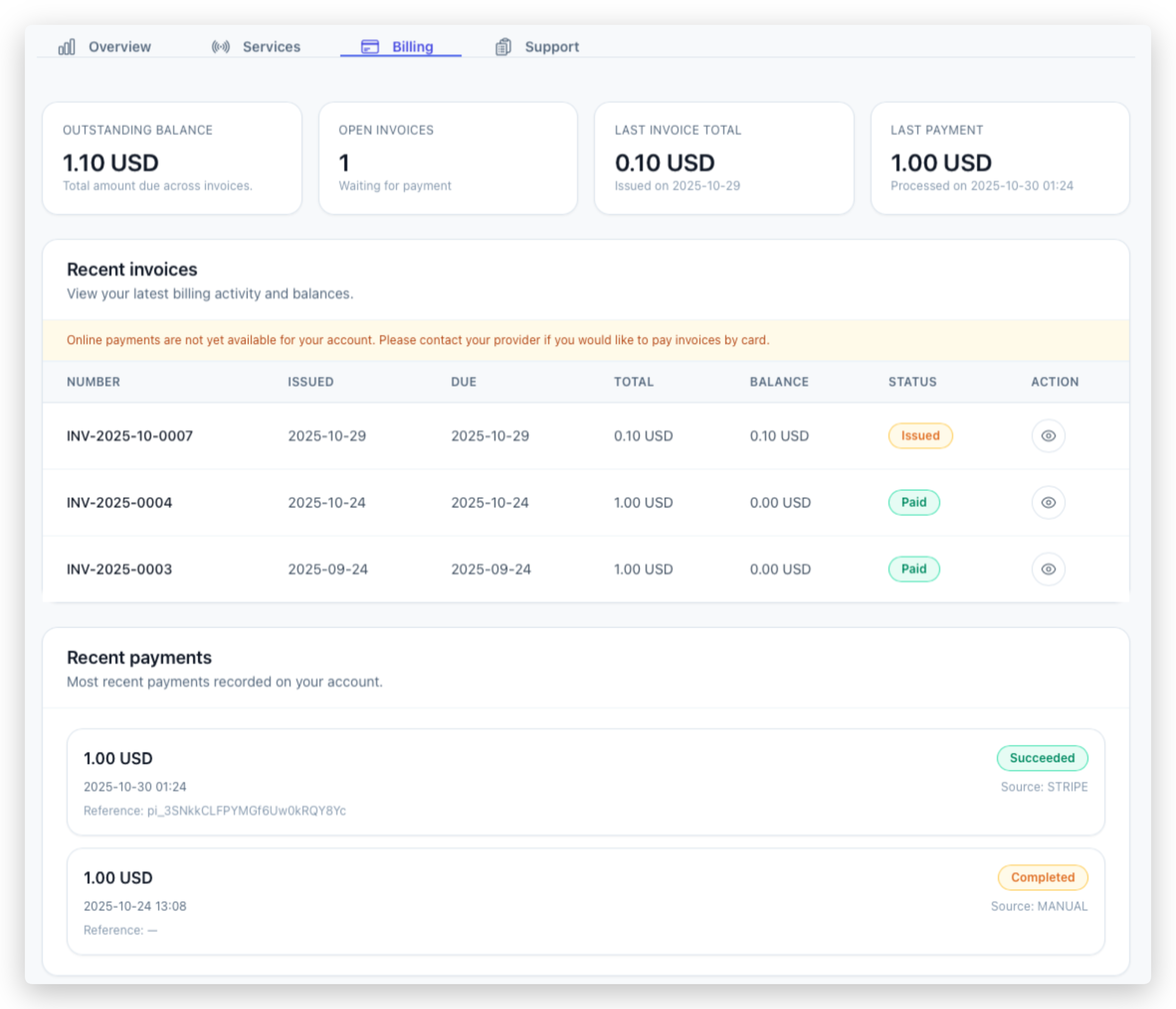
Summary Cards
| Card | Meaning |
|---|---|
| Outstanding balance | Total due across invoices |
| Open invoices | How many invoices still need payment |
| Last invoice total | Most recent invoice amount |
| Last payment | Most recent payment amount |
Automatic Payments (Optional)
This section appears only when the provider has online payments enabled and allows auto-charge.
| State | What it means | Customer actions |
|---|---|---|
| Enabled | A saved card is on file and active | Update card or Disable |
| Disabled | No card on file for auto-pay | Enable automatic payments |
Recent Invoices
Invoices show:
- Number, Issued, Due
- Total and Balance
- Status (for example, Paid / Issued / Overdue)
- Actions: View invoice and (if eligible) Pay with Stripe
Online Payments Availability
If online payments are not enabled for the tenant/account, customers will not be able to pay by card in the portal and will be prompted to contact the provider.
Billing History Page
This separate page lists all invoices and all payments with pagination.
All Invoices Table
| Column | Meaning |
|---|---|
| Number | Invoice number (or fallback #ID) |
| Issued / Due | Key invoice dates |
| Total / Balance | Amount billed and remaining unpaid |
| Status | Paid / Overdue / Issued etc. |
| Actions | Open invoice preview (PDF) |
Payments Table
| Column | Meaning |
|---|---|
| Date | Processed date/time |
| Amount | Payment amount |
| Status | Succeeded / Completed / Failed etc. |
| Reference | Payment reference (Stripe reference or manual reference) |
| Invoice | Linked invoice number (if applicable) |
Support Tab
Recent Tickets
Shows a list of the most recent tickets with:
- Subject
- Status (Open vs Closed/Resolved)
- Created timestamp
- Short preview of the description
Open a Support Ticket
Customers can submit a request directly from the portal.
| Field | What to enter |
|---|---|
| Subject | Short title (for example: “Low speed”, “No connection”, “Billing question”) |
| Describe the issue | Details (symptoms, when it started, address/service info if relevant) |
| Priority | Low / Medium / High |
After submission, the portal shows a confirmation message and the ticket appears in the ticket list.