Add a Service
Published Feb 07, 2026
Updated Feb 07, 2026
1 min read
Learn how to add a service in ISPBox: choose package and router, enter authentication details, create the service, and optionally assign equipment during setup.
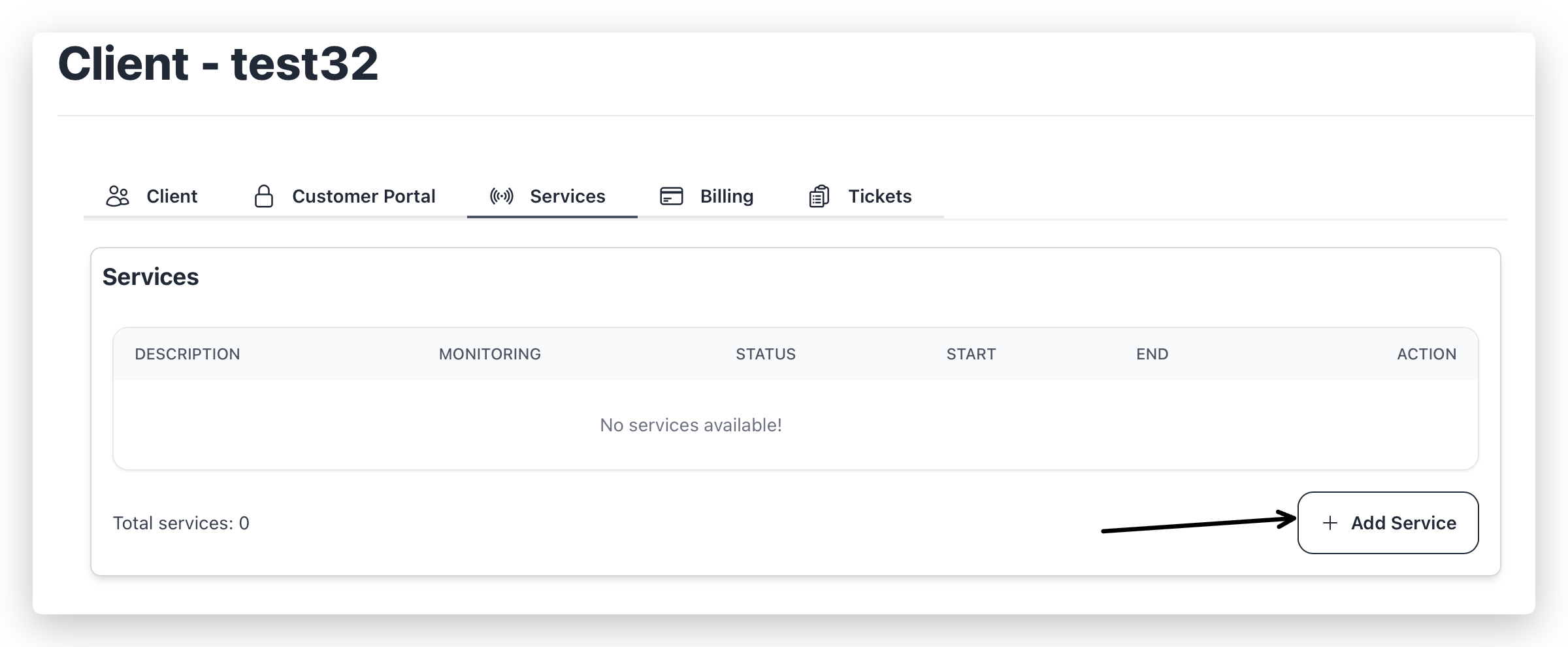
- Open Clients -> View Client -> Services and click + Add Service.
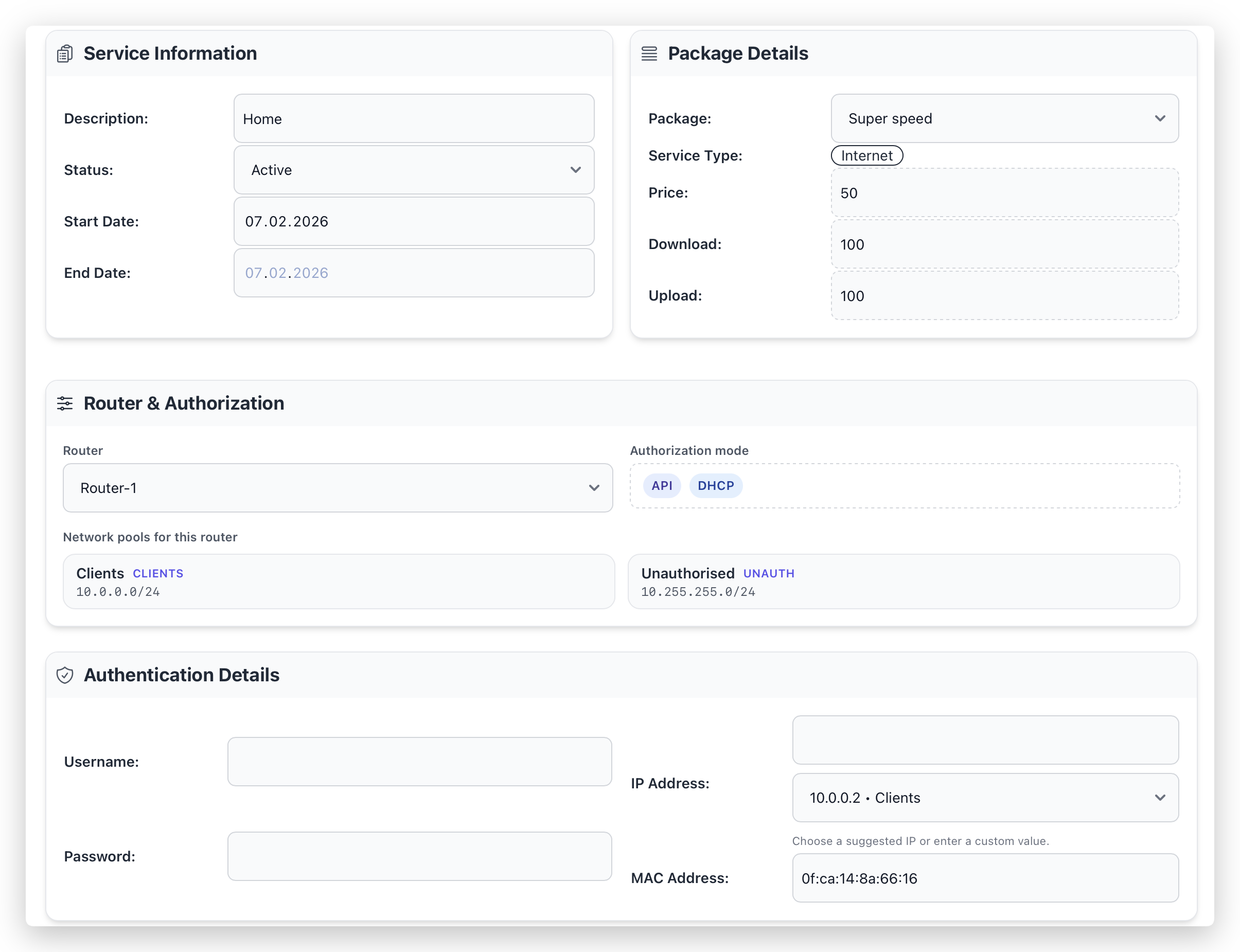
- Fill Service Information: Description, Status, Start Date (End Date optional).
- Select a Package (Price/Download/Upload are shown from the selected package).
- Select a Router and verify the shown authorization mode (API/RADIUS, DHCP/PPPoE).
- Fill Authentication Details:
- API + DHCP: IP + MAC required
- API + PPPoE: Username + Password + IP required
- RADIUS + PPPoE: Username + Password required
- TV package: IPTV Login + IPTV Password required
- Click Create Service.
After save, the service appears in the client Services list.
If API provisioning fails, the service is still created and marked as Sync required.
Optional: Assign Equipment
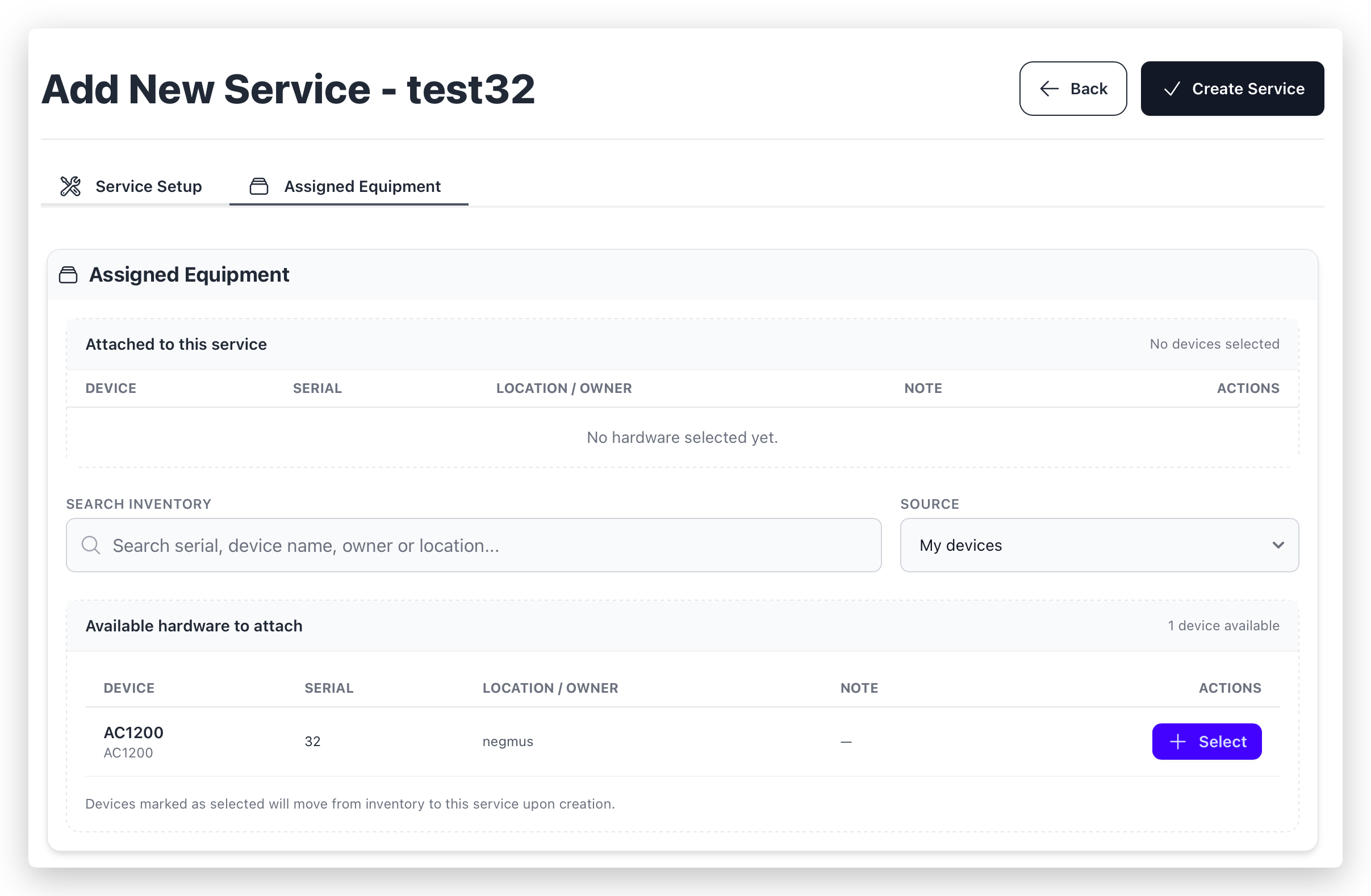
In Assigned Equipment tab:
- Search/filter available hardware.
- Click Select to mark devices for this service (optional note, optional serial if missing).
- Create the service.
Selected devices are attached during service creation and moved from stock/user ownership to the service.